
This feature is currently in beta. Please contact the support team for early access.
If you use Card on File to charge customers, you can already send an email receipt manually. This update adds an automation option: when a Card-on-File payment succeeds, the system can automatically email a confirmation to your customer.
What the customer receives
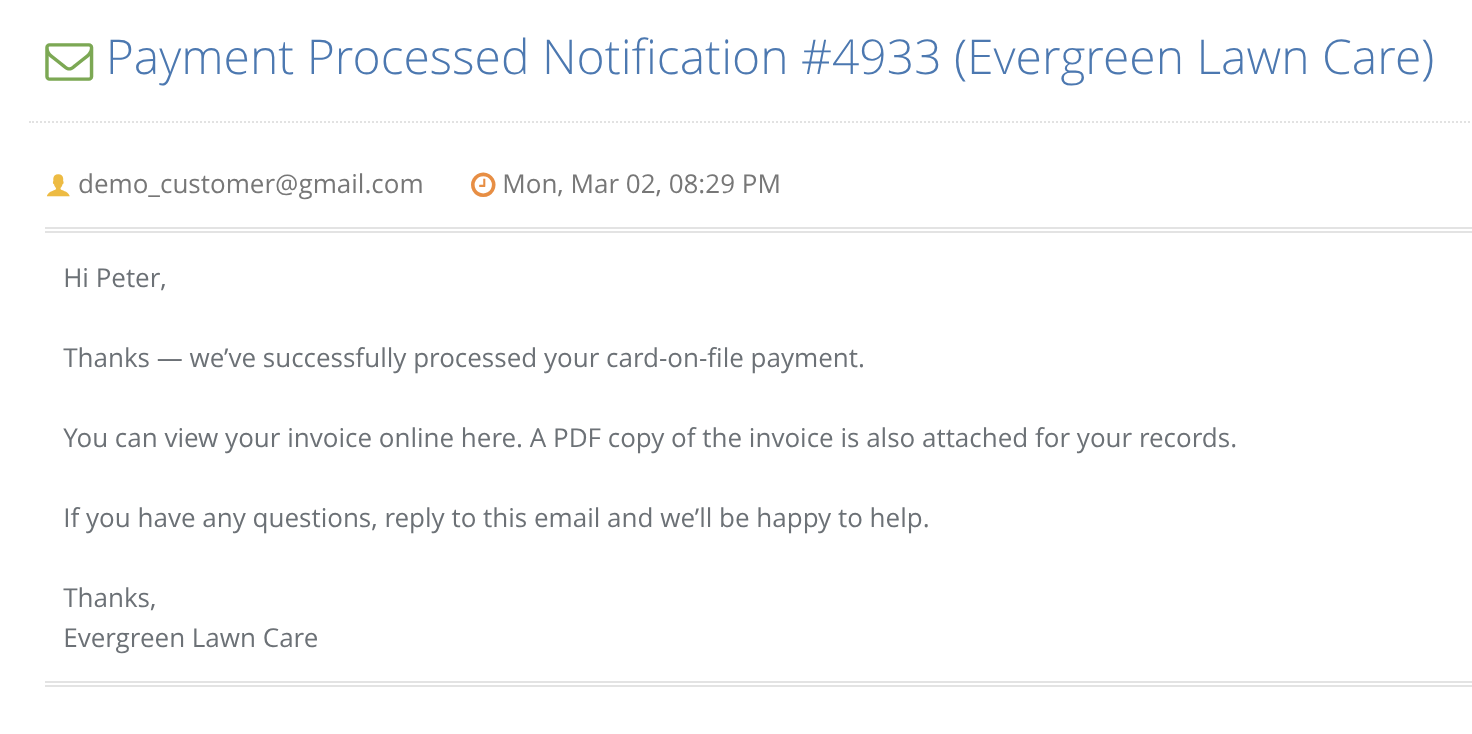
When enabled, the customer will receive an email that includes:
- A PDF copy of the invoice
- A link to the online invoice
Step 1: Enable automatic confirmations
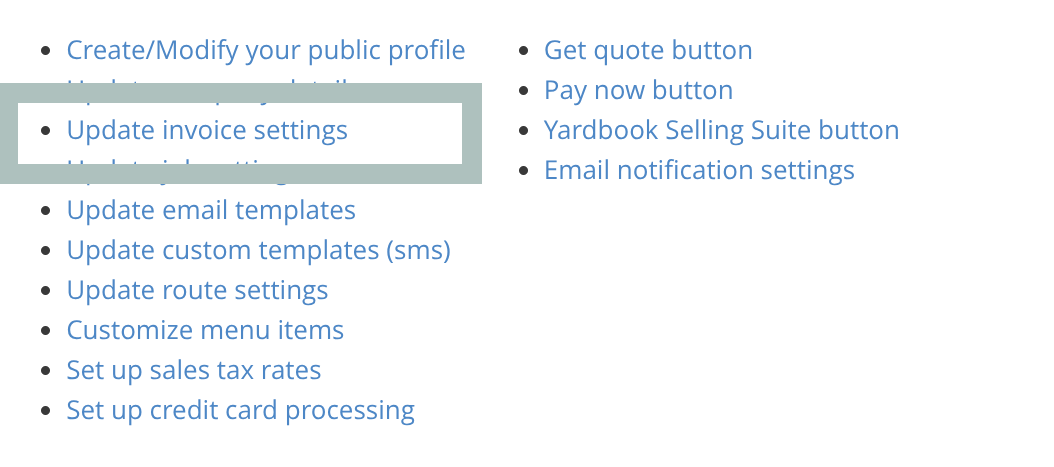
Go to Invoice Settings
Sitemap → Settings → Invoice Settings
Enable option:
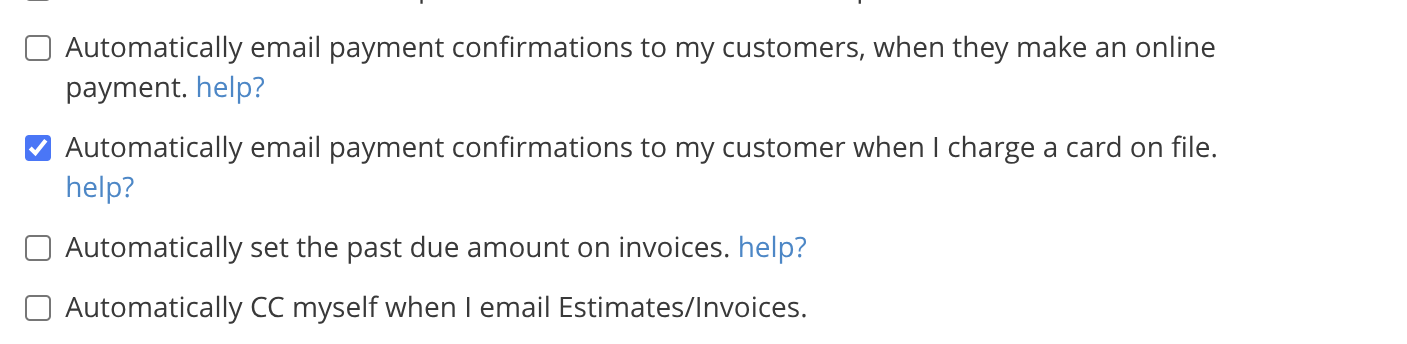
Click Save
Step 2: Set up the email template used for confirmations
Next, set up an email template version will be used for these automated notifications.
Go to Invoice Templates
Sitemap → Settings → Update Email Templates
Click Default Invoice Email
Click the red link to add more versions
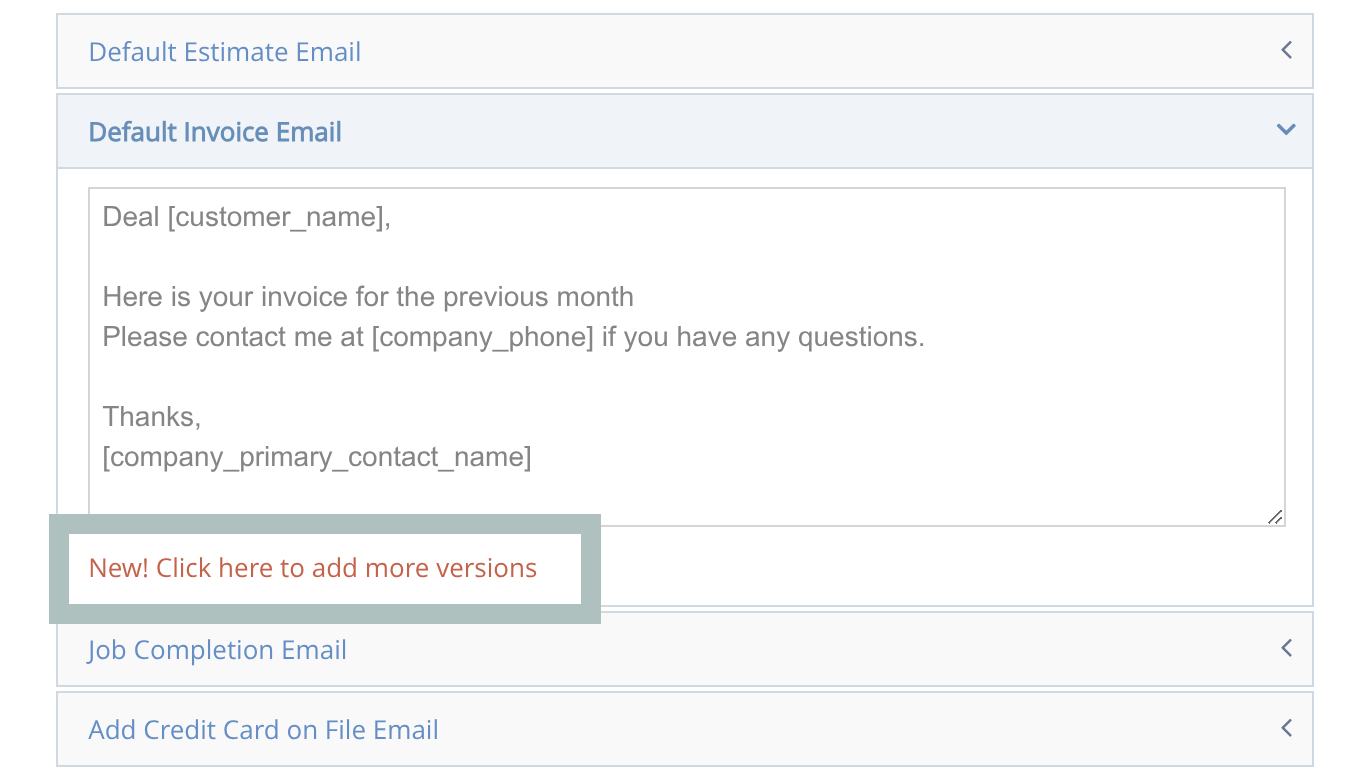
This will take you to the Email Template Versions page.
Click Add New Version to add a new email template for the confirmation email.
Configure your email template as desired:
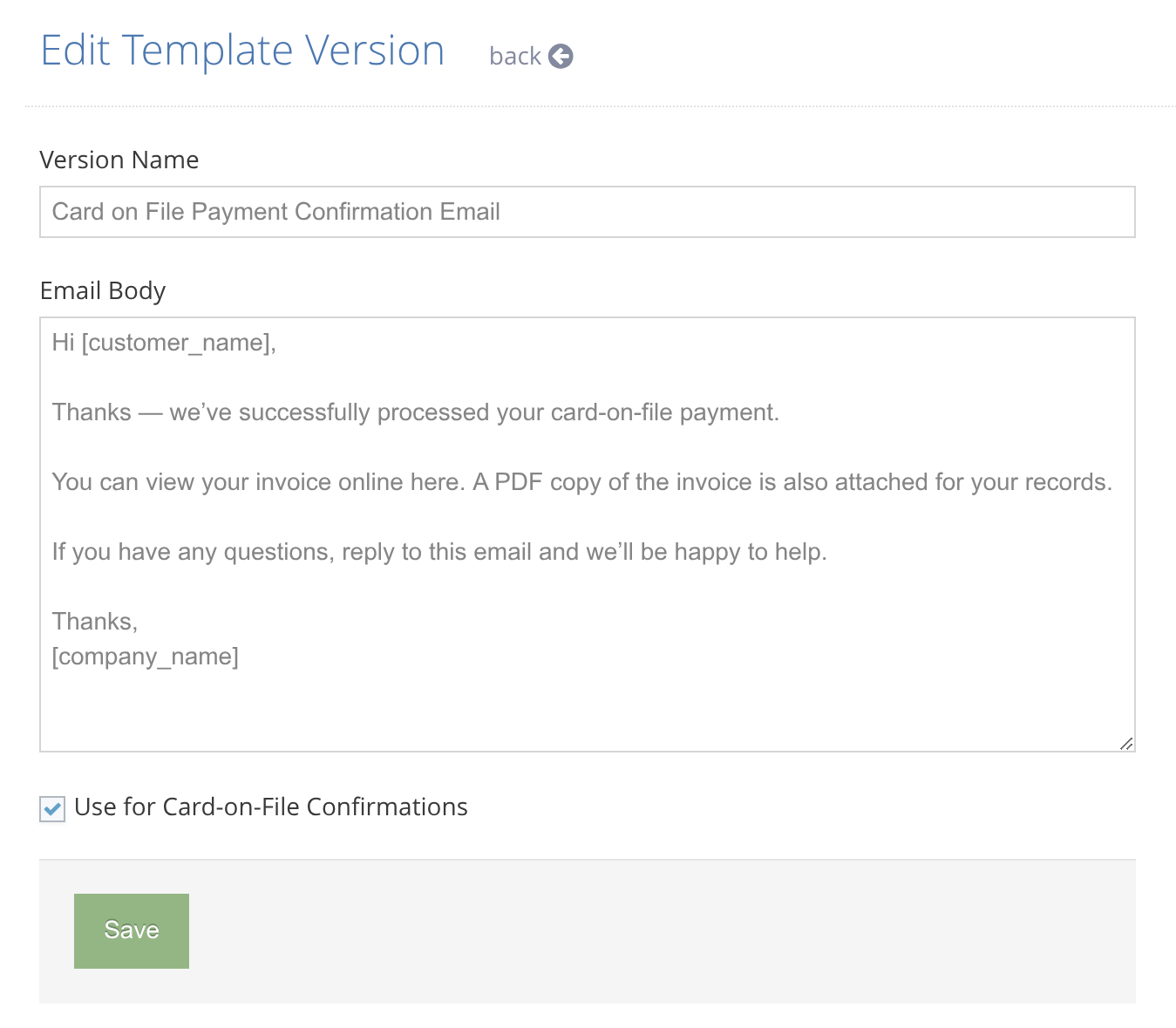
Make sure you select: Use for Card-on-File Confirmations
Click Save
Confirm it’s working
The next time you successfully process a Card-on-File payment, the email will be sent automatically.
To verify:
- Open the Invoice Details page
- Look for Email sent: 01/01/2026
This indicates the email was sent on that date. - Click it to view the email content.
If the email wasn’t sent
Check the following:
- Customer has an email address
(No email = nothing to send to.) - Your company has a Primary Email set
This will be used as the Reply-To address.