
This feature is currently in beta. Please contact our support team for early access.
If you are already generating invoices directly from your jobs, you can now take advantage of the new J2P Auto Mode feature.
J2P Auto Mode automatically creates an invoice when you mark a job as Completed in Yardbook. You can review the invoice and send it to your customer, or enable auto‑email to send it right away.
Why use it?
- Saves time—no more manual invoice creation.
- Keeps jobs and invoices in sync.
- Works with the new J2P Report for better visibility and control.
How it works (at a glance)
- You mark a job as Completed.
- Yardbook automatically creates an invoice from that job.
- You can review and send it, or (if enabled) the invoice is automatically emailed to the customer.
- Payments received are tracked on the invoice and roll up into reports, including the J2P Report.
Setup
Go to Sitemap -> Company Profile -> Settings.
Click on “Update Job Settings”.
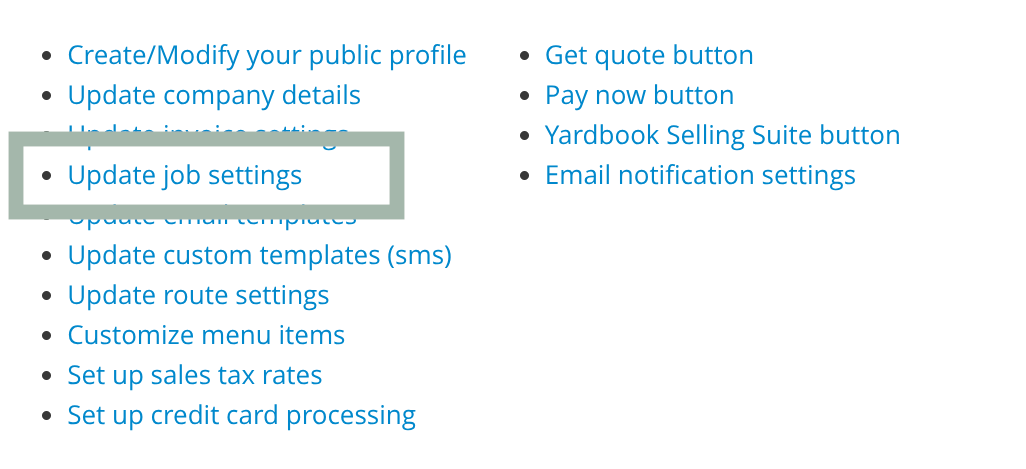
This will take you to the “Edit Job Settings View”.
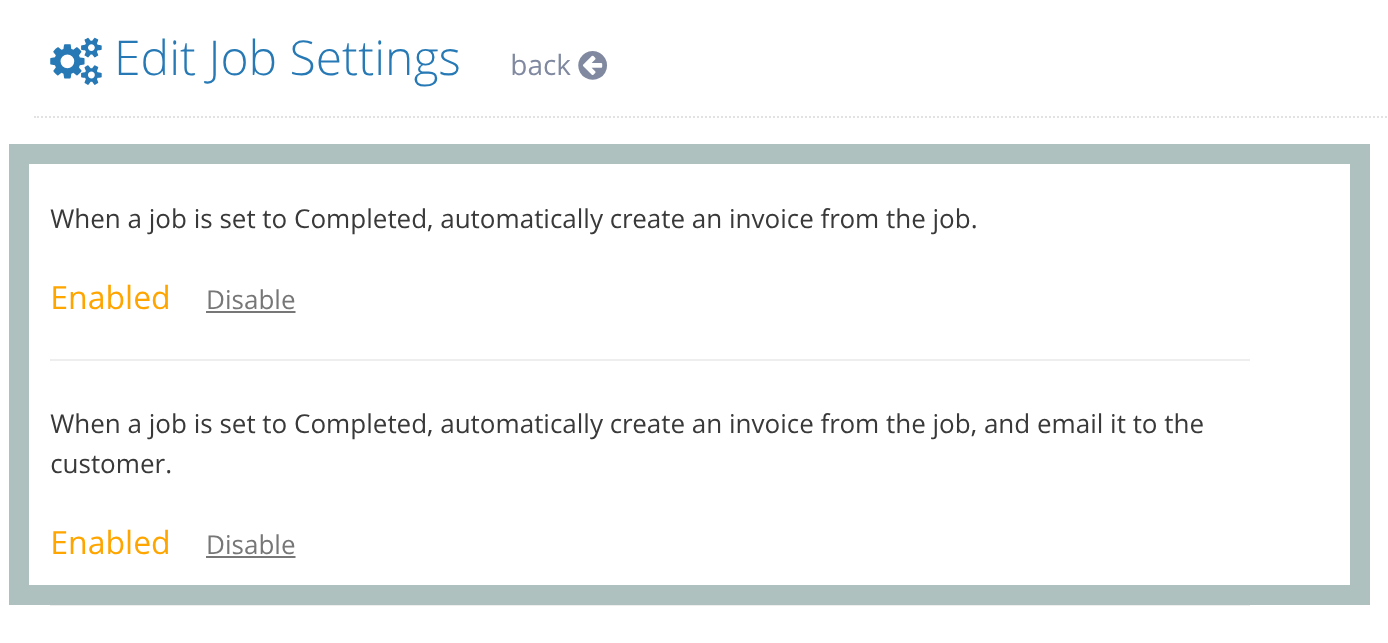
Note: J2P Auto Mode is best for teams already using job-based invoicing. Before enabling auto‑email, make sure your pricing, taxes, services, and email settings are correct. If these aren’t set up properly, invoices could be sent with incorrect amounts.
Where to find the invoices
Invoices created by J2P Auto Mode appear in your Invoices list just like any other invoice. You can edit, resend, or record payments as needed.
Works with J2P Report
J2P Auto Mode integrates with the J2P Report, giving you a clear picture of jobs, invoices, and payments.
Automatic invoice note
Whenever an invoice is created through J2P Auto Mode, Yardbook automatically adds this note to the invoice:
“This invoice was auto created when the job was completed”
This behavior is enabled by default. If you’d like to disable the automatic note on your account, please contact our support team and we can turn it off for you. ([email protected])
Disabling J2P Auto Mode for specific customers
By default, J2P Auto Mode runs for all customers when you mark their jobs as Completed. If you have customers you don’t want to auto-invoice, you can disable J2P Auto Mode at the customer level.
To disable J2P Auto Mode for a customer:
- Go to the Customer Details page.
- Click Edit for the customer.
- Check the box: “Disable J2P Auto Mode for this customer”.
- Save your changes.
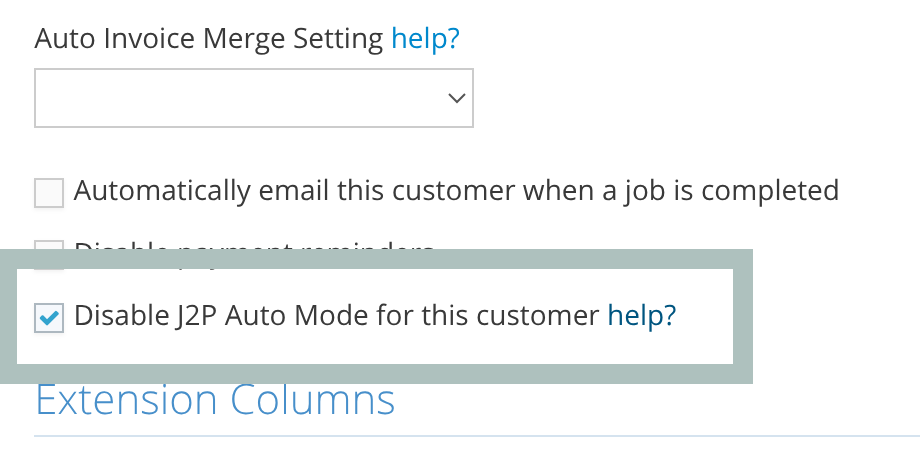
When this option is enabled for a customer:
- No automatic invoice will be created when you complete jobs for that customer through J2P Auto Mode.
- You can still create invoices from jobs as needed.