
Don’t have an EIN/Tax ID? Register as a Sole Proprietor. Click here if you do have an EIN/Tax ID.
You’ll complete this in the Twilio Console using Twilio’s A2P 10DLC registration flow.
Before you start
- You must use a real U.S. or Canadian address and a mobile number you physically have access to (virtual/VoIP numbers typically won’t work for OTP verification).
- Sole Proprietor registration is intended for those without a Tax ID. If you have an EIN/Tax ID, register as a Business/Low-Volume/Standard instead.
Step 1. Create Your Starter Profile
- Log in to your Twilio Account.
- Navigate to Messaging > Regulatory Compliance > Onboarding.
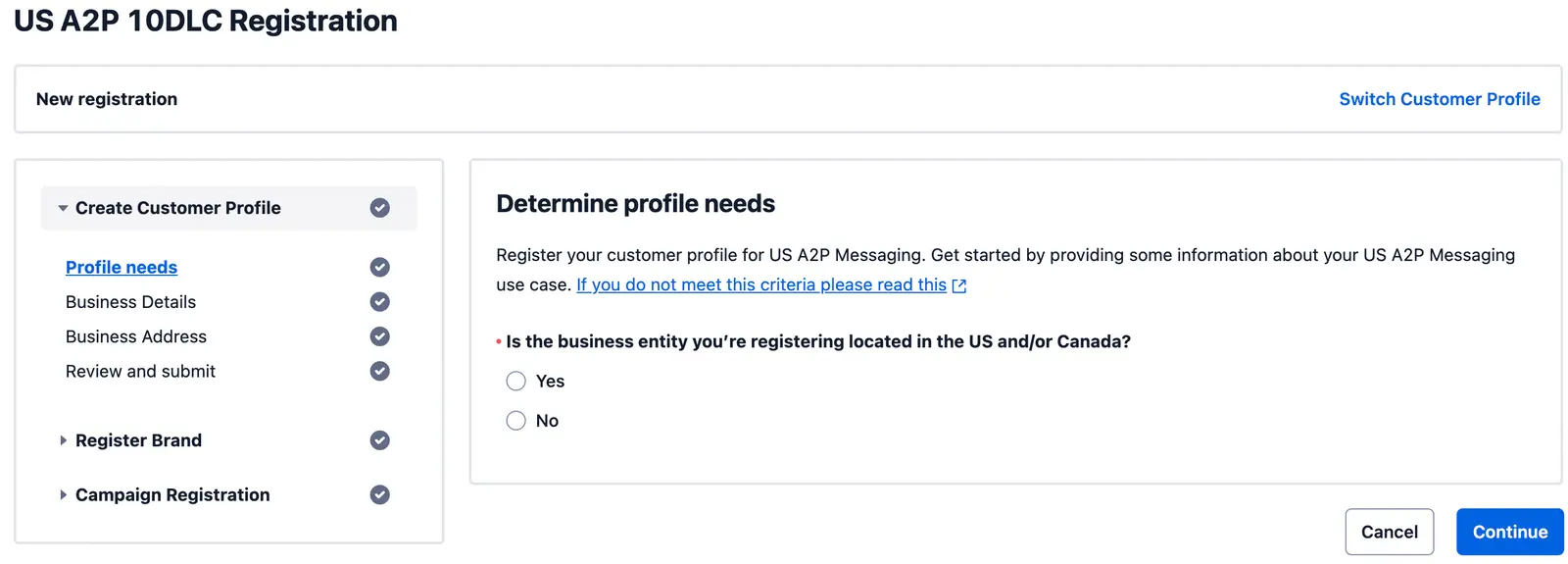

- Fill in your personal details:
- Profile Name: The name you wish to give to your Starter Profile (Ex. Mike’s Lawncare)
- Name: Must match your real legal name.
- Address: Your real physical address.
- Email: A valid email (disposable emails will be rejected).
- Mobile Number: This is crucial. Enter a valid US/Canada mobile number that you physically possess. You will need this for the next step. Virtual numbers are not accepted.
Then, click “Save and Continue”.
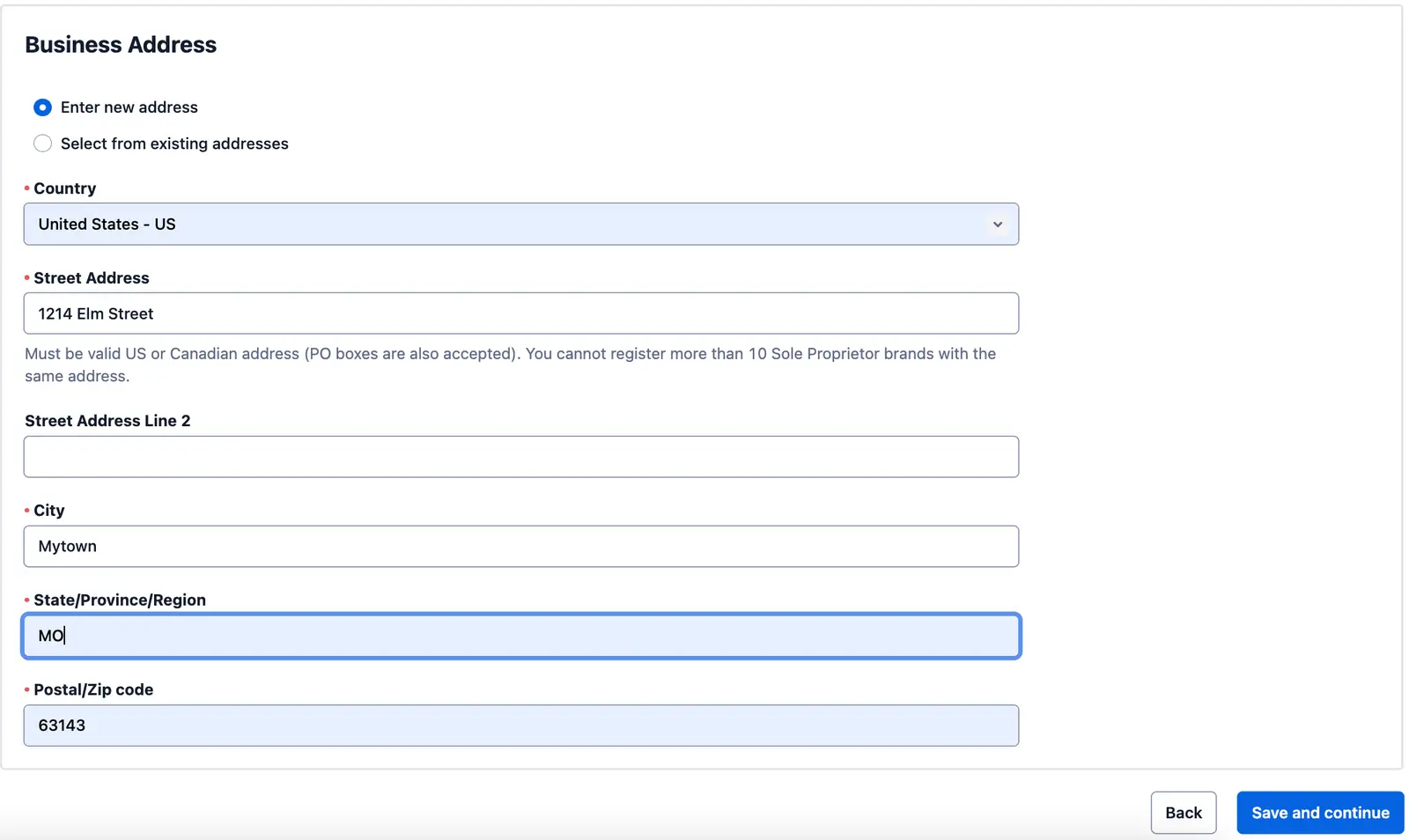
The next page will display your profile details. After confirming that all information is entered correctly, you can click “Submit for Review”.
Step 2. Register Your Brand
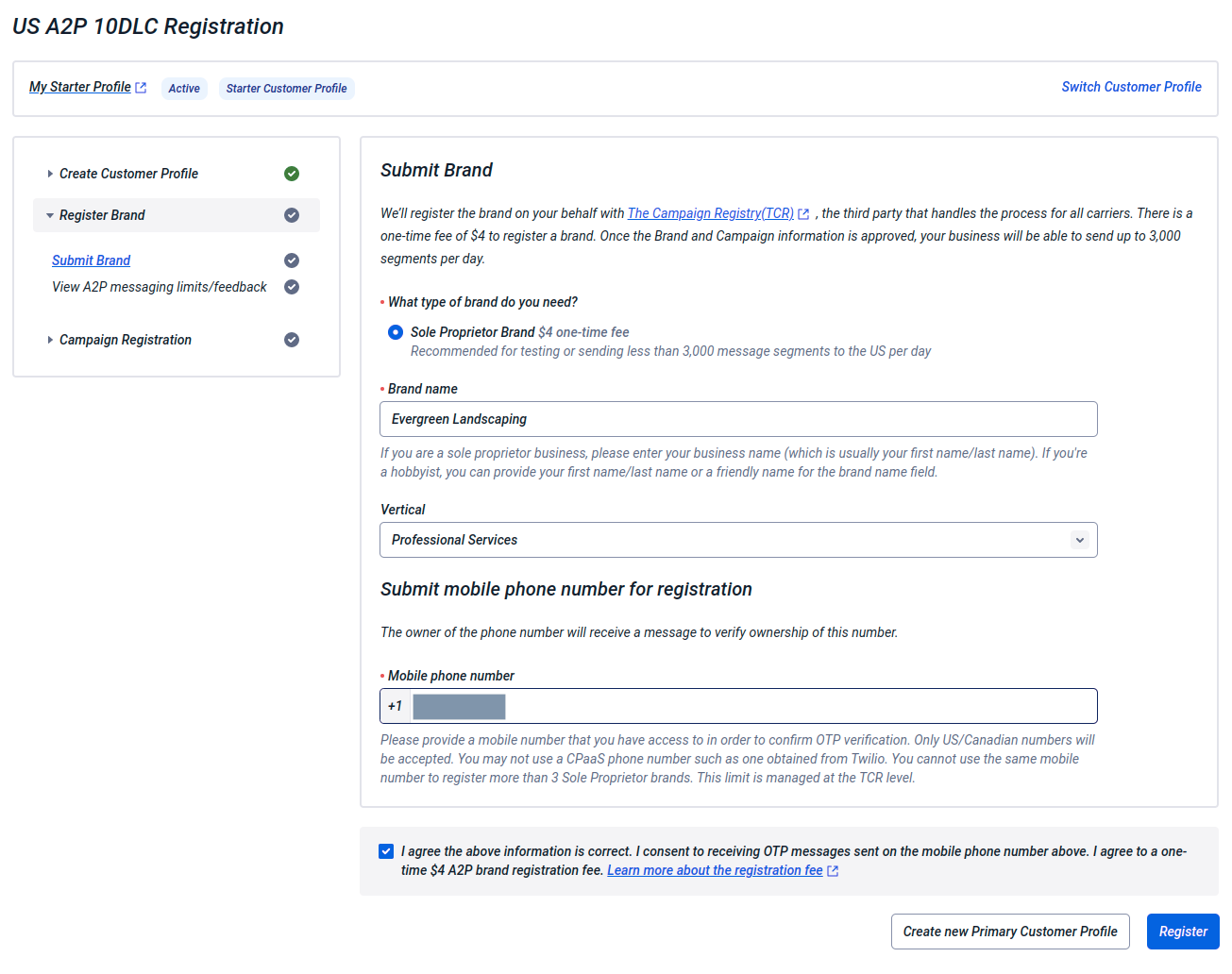
- Brand Type: You will only see the Sole Proprietor option.
- Brand Name: You can use your business name or your first and last name.
- Vertical: You can select “Professional Services”.
- Mobile Phone: Please enter a valid mobile number here. Twilio will send a verification text message to that number to complete the process.
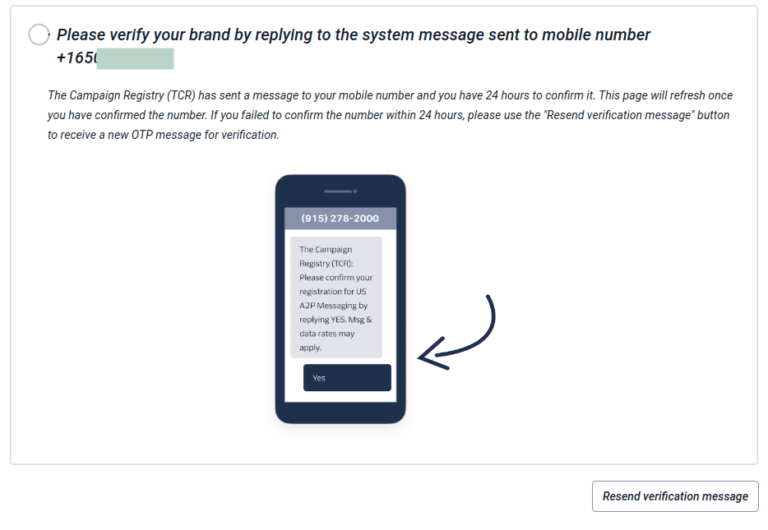
After filling out all the fields, click “Register”. Approval usually takes a few minutes. You will receive an SMS OTP on your registered mobile phone number.
IMPORTANT: You must respond to this OTP within 24 hours.
Step 3. Register your Campaign
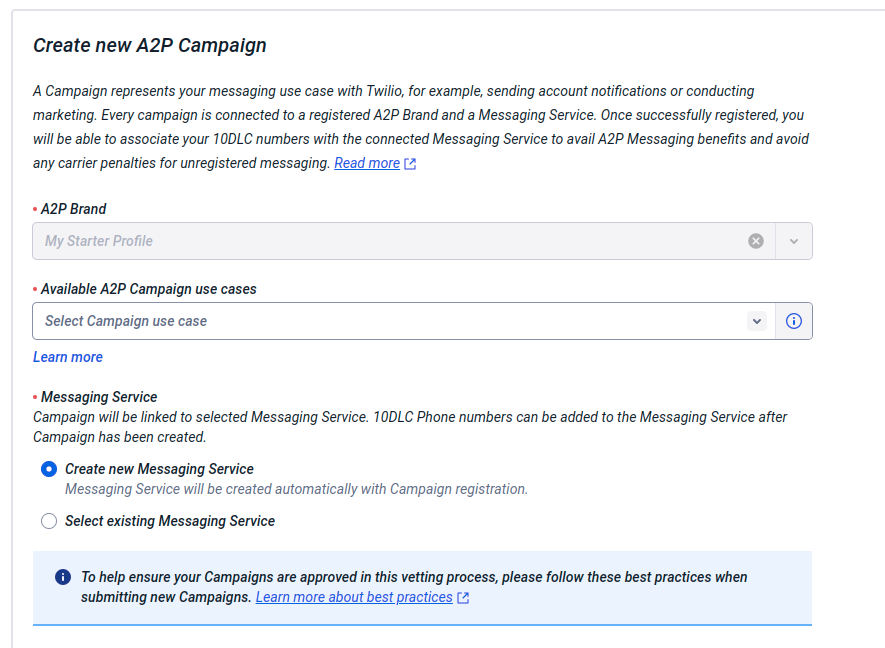
- Go to Campaign -> Register A2P Campaign.
- Available A2P Campaign use cases: You will only see a Sole Proprietor option on the drop-down.
- Messaging Service: You can select “Create New Messaging Service” if you haven’t created one before.
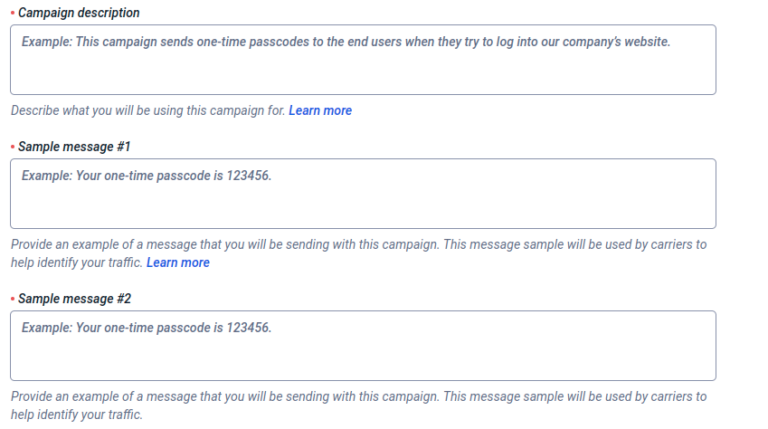
Campaign Description, Sample Messages, Opt-in Process
Here is what we used in our demo account. Please feel free to copy and modify based on your own business needs.
Campaign Description:
This campaign sends notifications to our customers, including job notifications, billing and payment reminders, and other important updates regarding their interaction with our business.
Sample Message 1:
Good news! Evergreen Lawn Care is en route to your location to service your trees. We’ll be there shortly! Reply STOP to opt-out.
Sample Message 2:
This is Evergreen Lawn Care. We’re sending you an invoice for the services provided. https://www.yardbook.com/tm/502389422286-1673151775741 Thank you for choosing us! Reply STOP to opt-out.
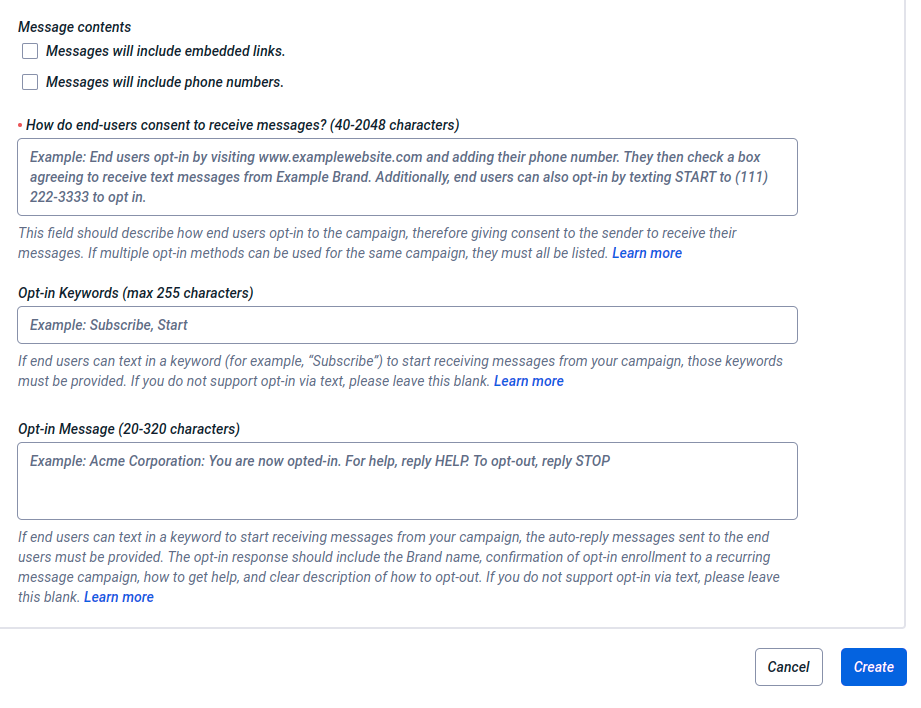
How do end-users consent to receive messages?
Our end users are customers who have signed up for our services and have requested to receive text notifications for appointment reminders, invoices, payment reminders, and other important updates.
To ensure compliance with privacy and opt-in policies, we have detailed our procedures on our website. You can review our opt-in and privacy policy here:
https://support.yardbook.com/new-customer-text-message-email-opt-in
You can view the privacy policy by clicking on the direct link titled “Consumer Privacy Policy” within the support link provided above.
Alternatively, you can experience our opt-in process by going through our online service request process. During the final step of the process, you will find the consumer privacy link along with the opt-in checkbox.
For your convenience, here is the link to our service request page:
[Replace this with your unique Get Quote Page link]NOTE: To get your Get Quote URL, please go to Settings -> Get Quote Button
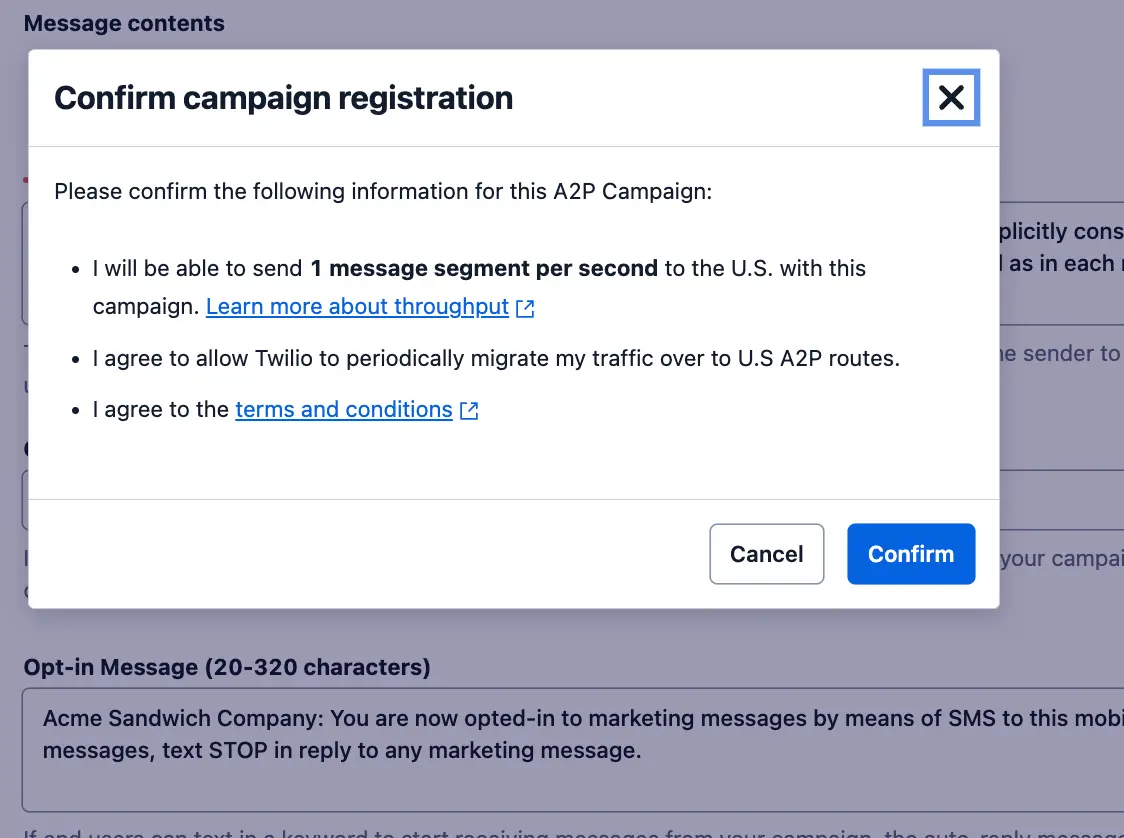
- After filling out all the required fields, click “Create” button found on the lower right of the form. Then, click “Confirm” on the pop-up message.
Check your 10DLC status
You can check your 10dlc verification status by following these instructions.
Once your number is fully verified, you can link your Twilio details to Yardbook and start sending and receiving messages using your dedicated number.
Please feel free to contact us if you have any questions. ([email protected])