
Need to push back a job in your multi-step program? The Reschedule feature lets you change the date on one job and automatically shift all future jobs by the same number of days.
How It Works
On the Customer Program page, click the “Reschedule” link below any job’s service date.
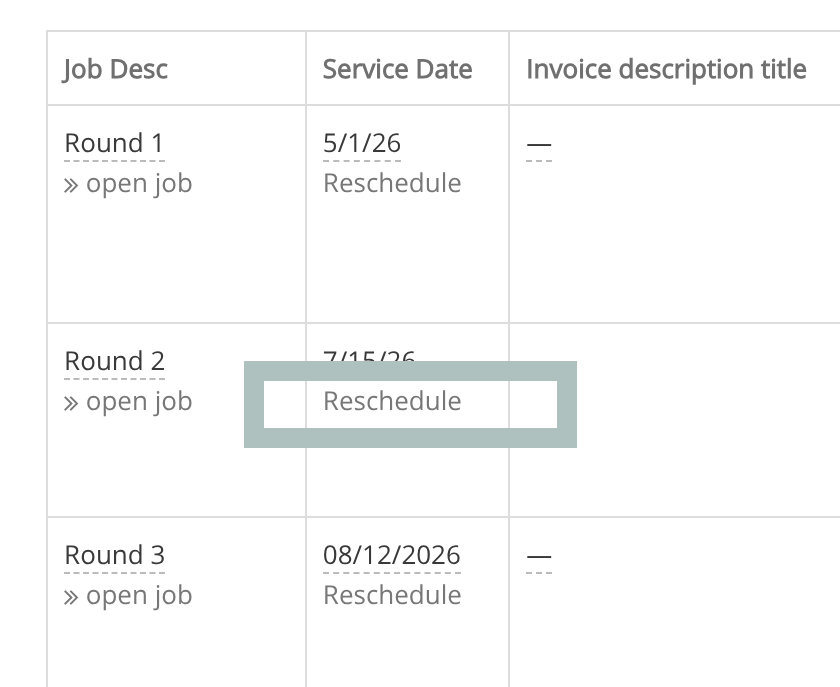
This opens the Reschedule Jobs page:
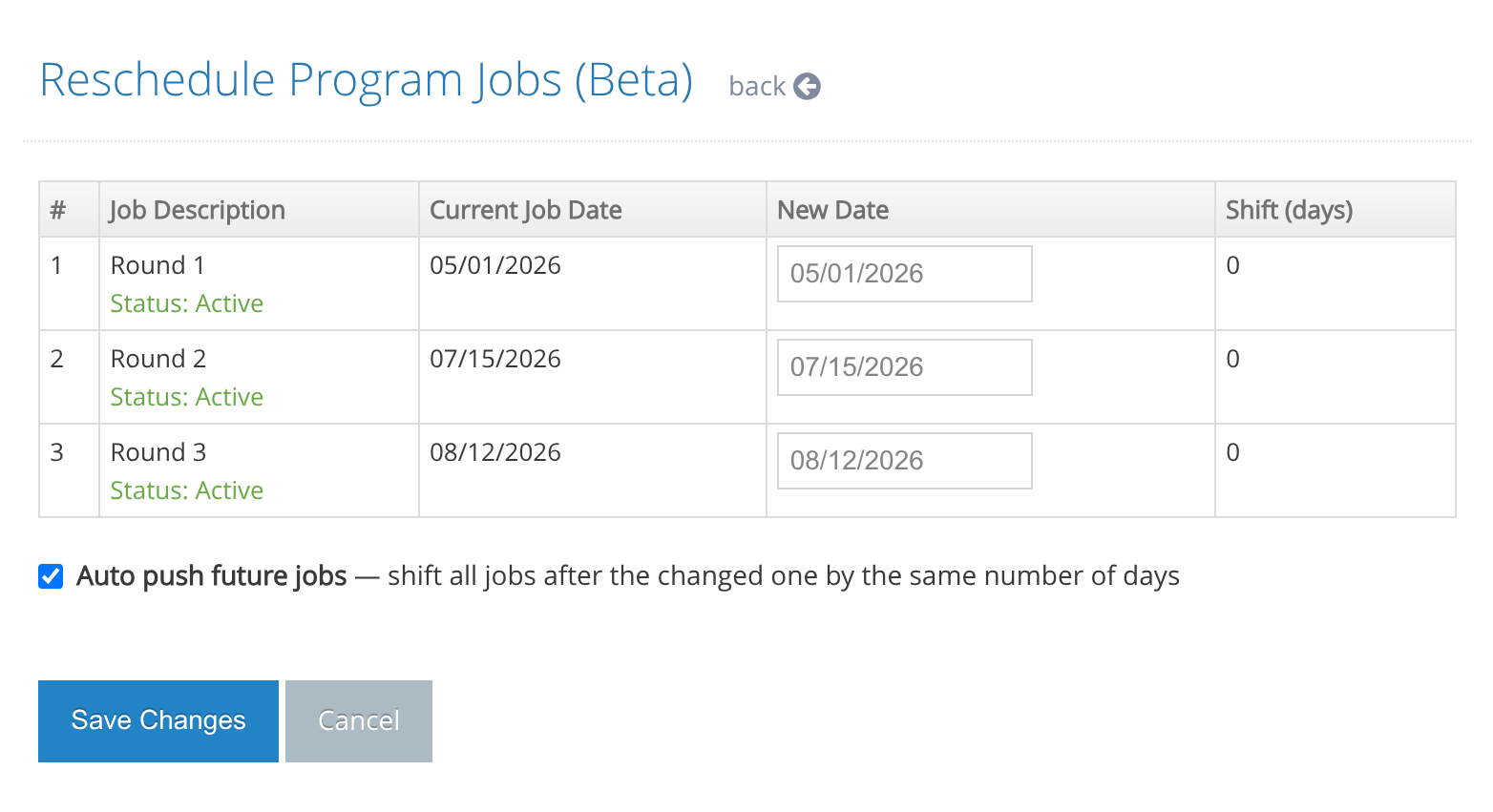
Change the date on any job. If “Auto push future jobs” is checked (default), all later jobs will shift by the same number of days automatically.
Click “Save Changes” when done. You may receive multiple notifications if jobs are shifted by different amounts — each batch is processed separately. Reload the program page after a few seconds to confirm the updates.
Tips
- You can shift jobs forward or backward.
- You can uncheck “Auto push future jobs” to change just one job.
- After auto-push, you can still manually adjust any individual job’s date before saving.